Useful Documentations about Choosing the Right Datastore

It is important to understand the difference between Relational and Non-relational storage solution because different solution fits for different use cases and application type.

I have organized some resources below for you to understand the different between these 2 and hopefully after reading these you can:

•Know the different datastore categories available

•Know the different use cases for data store workloads

•Know the Azure and OSS datastore offerings available

•Design solutions that pick the right datastores for the use case

Choosing the Right Datastore

https://docs.microsoft.com/en-us/azure/architecture/guide/technology-choices/data-store-overview

Criteria for choosing a data store

https://docs.microsoft.com/en-us/azure/architecture/guide/technology-choices/data-store-comparison

Choosing a big data storage technology in Azure

https://docs.microsoft.com/en-us/azure/architecture/data-guide/technology-choices/data-storage

Choosing a search data store in Azure

https://docs.microsoft.com/en-us/azure/architecture/data-guide/technology-choices/search-options

Choosing a stream processing technology in Azure

https://docs.microsoft.com/en-us/azure/architecture/data-guide/technology-choices/stream-processing

Choosing a batch processing technology in Azure

https://docs.microsoft.com/en-us/azure/architecture/data-guide/technology-choices/batch-processing

Choosing a real-time message ingestion technology in Azure

https://docs.microsoft.com/en-us/azure/architecture/data-guide/technology-choices/real-time-ingestion

Thank you,

Your friend,

Annie

Load data from cosmos db to Event hub using Azure Function at Azure Portal

One way to load data from Cosmos DB to Event hub is to use Azure Function. But although there is many coding samples out there to create such Azure Function. If you are like me do not have much application development experience, reading those code samples is bit channenging. Luckly, Azure Portal made is so easy.

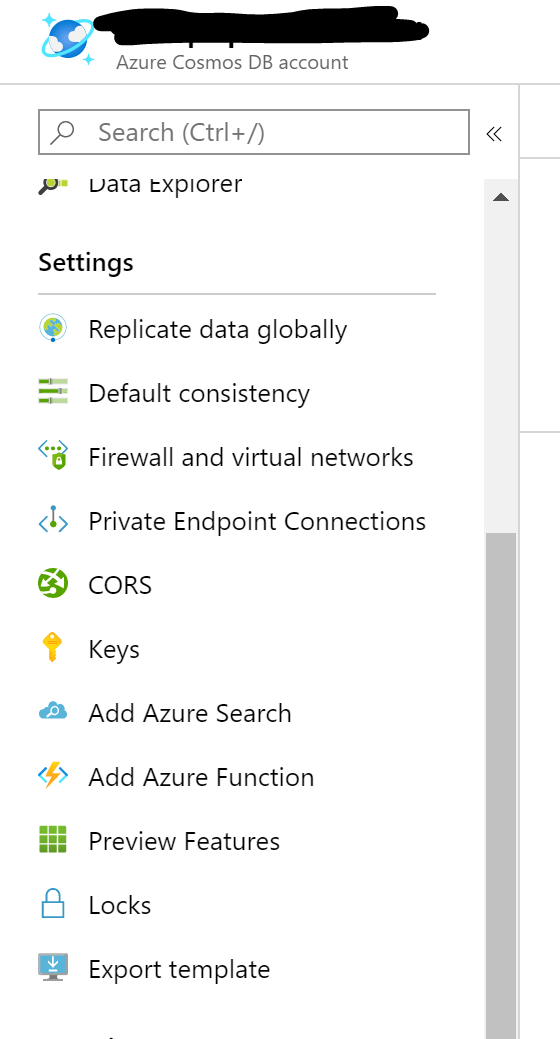
  • Navigate to your Cosmos DB on Azure Portal, on the left pannel, you can find a choice under Settings called ‘Add Azure Function’

CosmosDB Azure Function 1

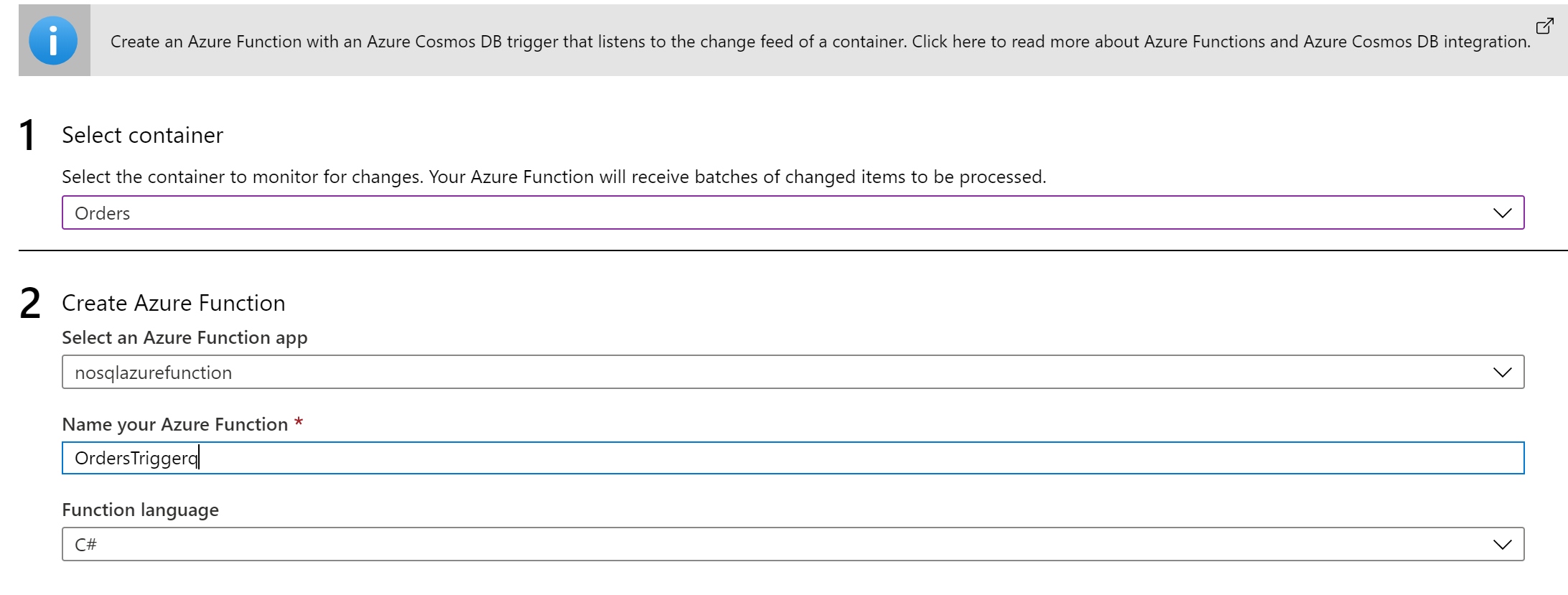
  • Fill the form popped up after you clicked on ‘Add Azure Function’ and choose the Function Language as C#. Then click ‘Save’
    • CosmosDB Azure Function 2


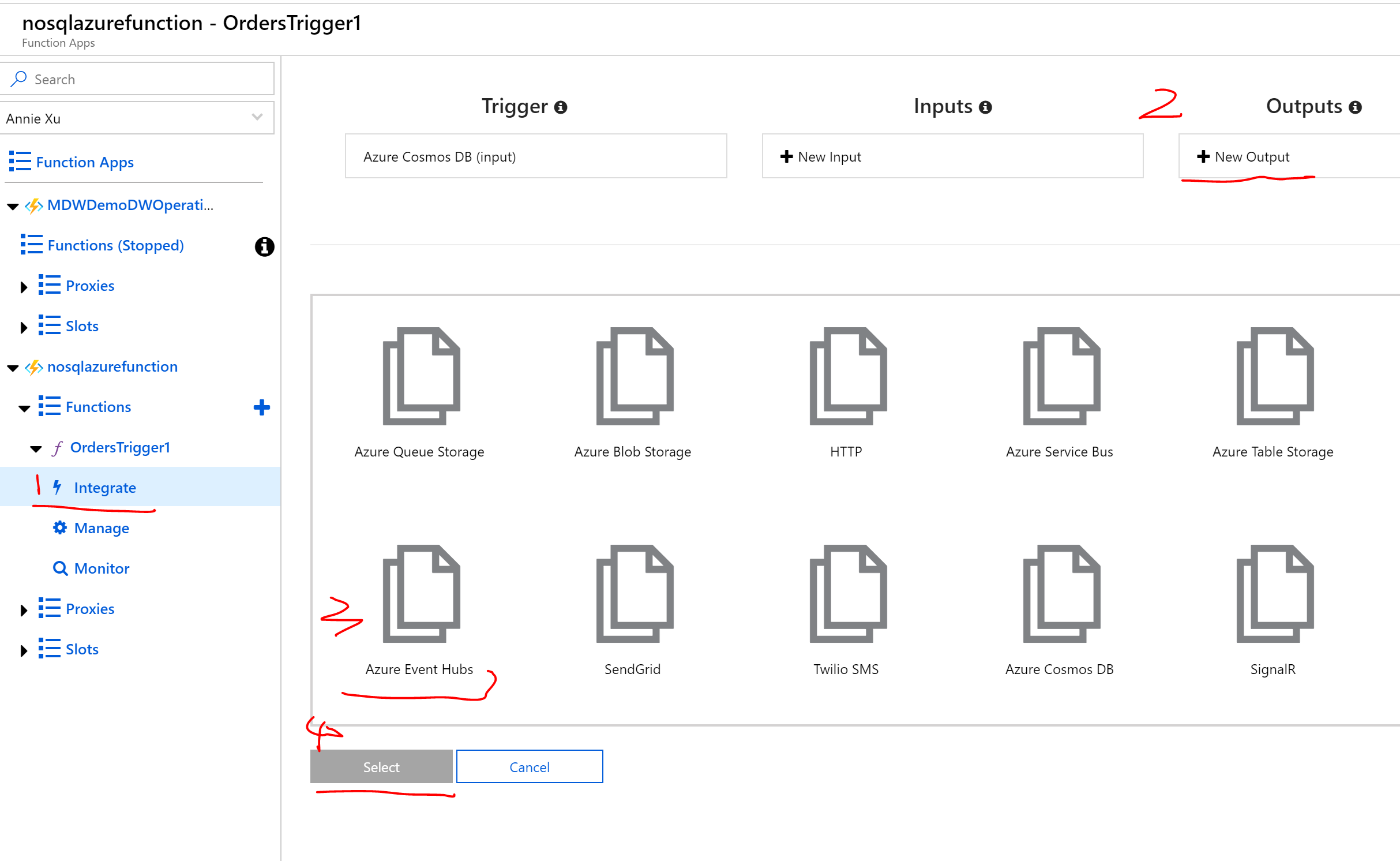
  • The portal will automaticly navigate to the Azure Function Apps page. and you will find the newly created Azure Function there. The next steps for us is to add the data target. In this case, it is Event hub. To add the Azure Function output target,
    • Click on ‘Integrate’
    • Click on the ‘Output’ New Output in the center form
    • Then choose ‘Azure Event Hub’ from the output choices
    • Save
      CosmosDB Azure Function 3
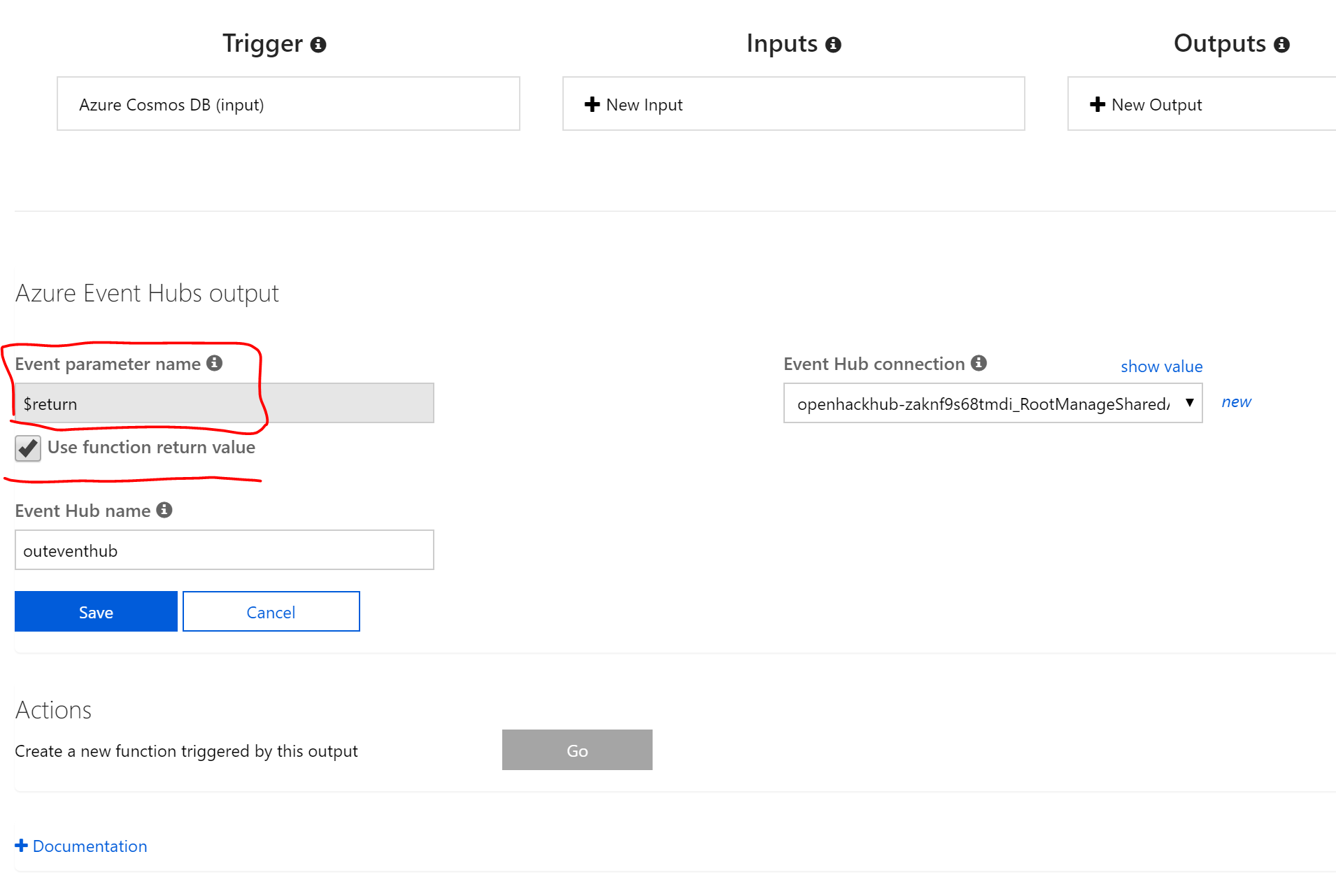
  • After you hit save, you will see the output form. change the Event Parameter Name field to be ‘$return’. And make sure the ‘Use Function Return Value’ is checked before ‘Save’
    CosmosDB Azure Function 4
  • The next step is to update the Azure Function run.csx code to create the data integration code.
    • Click on the FunctionName itself and the run.csx editing page will show up.
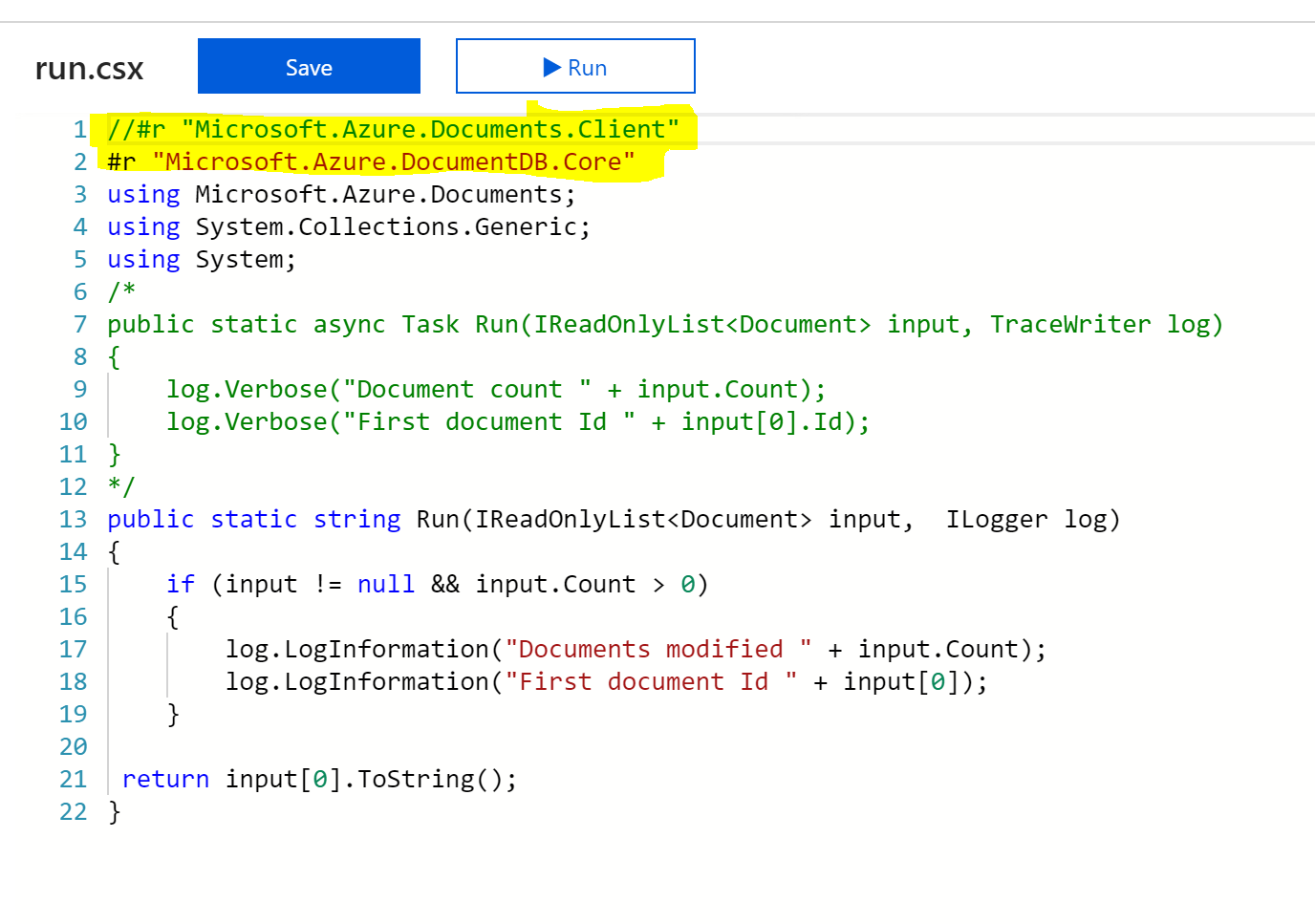
    • Then change the current code into this code
    • And click on ‘Save and Run’
    • Please note where I highlighted in yellow, depends on which run time version of Azure Functions App you have. the reference file can be either #r “Microsoft.Azure.Documents.Client” or #r “Microsoft.Azure.DocumentDB.Core”. So interchange those two if you run into error.
      • CosmosDB Azure Function 5
  • Now, your azure function is up running and capturing the changes and sending the changed files to event hub.


Thanks,

Your friend, Annie

An easy way to compare all tables’ DDL between two SQL environments

To continue my story about data warehouse migration from UAT to PROD environment.

The DDL difference between the same source loading table from two environemnts will cause my data warehouse load fail, so I need to find an easy to compare the two for all my sourcing tables . There are a lot of good tools with free trail out there to choose. However, there are some regulation from my client side to installing third party tool so I need to create a query to help me to do so instead.

Inspired by an answer from this Post which compares one table. I generated the following query which can loop through all of my targeted sourcing tables.

DECLARE @Table VARCHAR(100);
DECLARE @i int=1;
While @i<= (select max([RANKColumn]) from [dbo].[EvaluationTableList] ) — this is the list table which contains all the tables you want to validate
Begin
SET @Table=(select [TABLENAME] from [dbo].[EvaluationTableList] where [RANKColumn]=@i)
insert into [dbo].[EnviromentObjectDifference] — (this is the output table)
SELECT Table1.ServerName,
Table1.DBName,
Table1.SchemaName,
Table1.TableName,
Table1.ColumnName,
Table1.name DataType,
Table1.Length,
Table1.Precision,
Table1.Scale,
Table1.Is_Identity,
Table1.Is_Nullable,
Table2.ServerName as T2ServerName,
Table2.DBName as T2DBName,
Table2.SchemaName as T2SchemaName,
Table2.TableName as T2TableName,
Table2.ColumnName as T2ColumnName,
Table2.name as T2DataType,
Table2.Length as T2Length,
Table2.Precision as T2Precision,
Table2.Scale as T2Scale,
Table2.Is_Identity as T2Is_Identity,
Table2.Is_Nullable as T2Is_Nullable
FROM
(SELECT @Server1 ServerName,
@DB1 DbName,
SCHEMA_NAME(t.schema_id) SchemaName,
t.Name TableName,
c.Name ColumnName,
st.Name,
c.Max_Length Length,
c.Precision,
c.Scale,
c.Is_Identity,
c.Is_Nullable
FROM [ServerName01].[DatabaseNameO1].sys.tables t
INNER JOIN [ServerName01].[DatabaseNameO1].sys.columns c ON t.Object_ID = c.Object_ID
INNER JOIN sys.types st ON St.system_type_id = c.System_Type_id AND st.user_type_id = c.user_type_id
WHERE t.Name =@Table) Table1
FULL OUTER JOIN
(SELECT @Server2 ServerName,
@DB2 DbName,
SCHEMA_NAME(t.schema_id) SchemaName,
t.name TableName,
c.name ColumnName,
st.Name,
c.max_length Length,
c.Precision,
c.Scale,
c.Is_Identity,
c.Is_Nullable
FROM [ServerName02].[DatabaseNameO2].sys.tables t
INNER JOIN [ServerName02].[DatabaseNameO2].sys.columns c
ON t.Object_ID = c.Object_ID
INNER JOIN sys.types st
ON St.system_type_id = c.System_Type_id
AND st.user_type_id = c.user_type_id
WHERE t.Name = @Table) Table2
ON Table1.ColumnName = Table2.ColumnName
where Table1.ColumnName is null or Table2.ColumnName is null;
SET @i=@i+1
END

Hopefully, you find this helpful.

Thanks,

Your friend, Annie

Blog at WordPress.com.

Up ↑